

5. Send notifications
After an order is approved or rejected, the applicant needs to know the result and return to the order to see its details. This chapter uses an in-app message to show how to describe the business rules to an application Agent, confirm where the notification appears, and check the delivery result.
Before you start
- The previous chapters have set up orders and an approval workflow that distinguishes approved and rejected states.
- The application template registers the notification and in-app notification plugins.
- Prepare an applicant account and a supervisor account to verify that recipients cannot see one another's notifications.
This example uses in-app messages, so you do not need to configure email or a group bot. See Notifications for notification channels, administrator test sends, and delivery logs.
Ask the Agent to connect the approval result
Give the following request to your application Agent, replacing the page name with the one used in the previous chapters:
Expected result
After an applicant submits an order and a supervisor approves or rejects it, the applicant sees the result in My notifications. Clicking the message opens the order. Another applicant does not see the first applicant's notification.
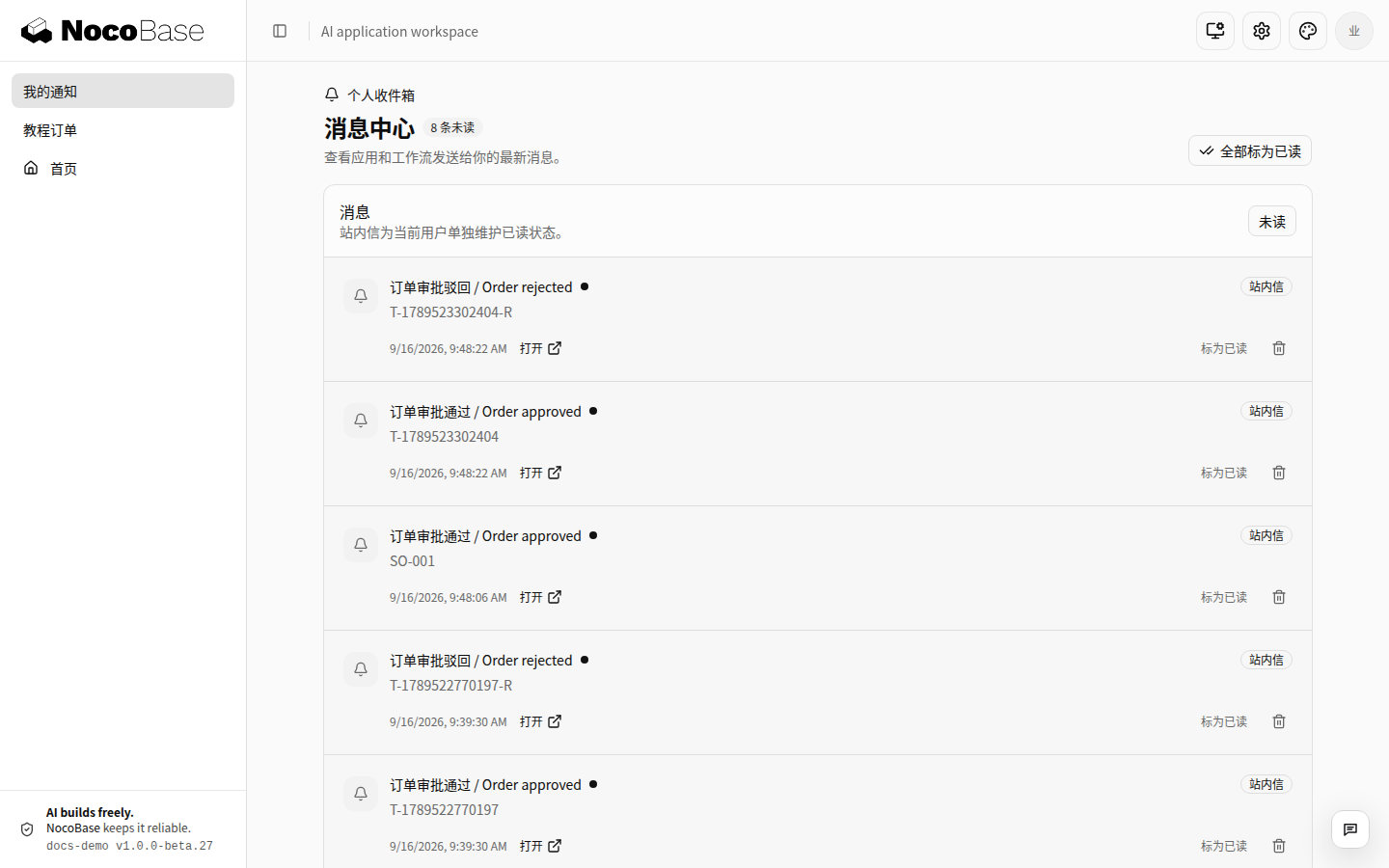
Check the delivery result
- Sign in as the applicant, create a new order, and submit it.
- Sign in as the supervisor and approve or reject the order.
- Sign back in as the applicant and open My notifications.
- Check the message and order link, then refresh the page to confirm the message is still available.
- Sign in as another applicant and confirm they cannot read the first applicant's notification.
Administrators can inspect notifications and delivery records in Settings → Notifications → Notification logs. A successful workflow run only confirms that the business process completed. Administrators still need to confirm that the in-app message was saved for the right recipient. If an email or group bot reports an uncertain result, check the destination before retrying to avoid duplicate messages.
Extend the example to email or group bots
To add email or instant messaging, have an administrator prepare a sending service or bot and configure its credentials on the server. Then tell the Agent who should receive the message, what it should say, how often it should be sent, and where to test it. See Notifications for configuration details and precautions.
Next: Deploy.