

Build your first feature with an AI Agent
Build a small order feature: sign in, view orders, add one, and change its amount. Store the data in the application database so it survives a browser refresh.
Describe this round of work
Finish creating the application, keep development running, and start a new AI Agent session in the application root. You can use this prompt:
Implement this feature in the application. It does not need a separately published plugin.
Review the changed files
Review the changes in these locations:
You do not need to understand every line first. Check that the changes match the task, then use the feature. client/ contains browser pages, server/ contains server endpoints, and database/ records schema changes.
Create an order
Sign in as the administrator used in the previous page. Open “Orders” and select “New order”. Enter:
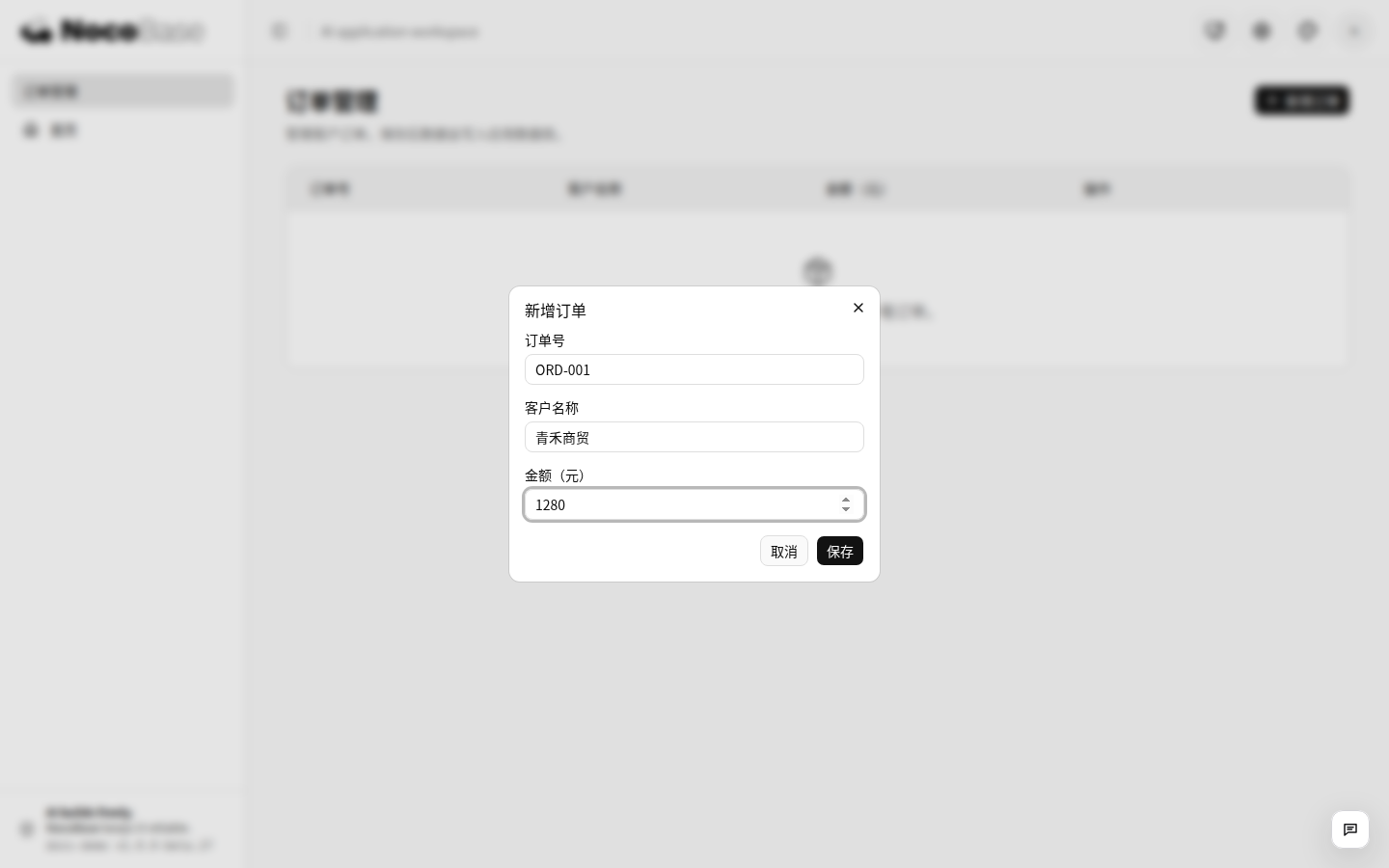
Save and confirm the order appears. Refresh the browser and check it again. This catches implementations that only update the interface without saving to the database.
Edit and check the result
Select “Edit order”, change the amount to 1380, and save. Refresh again: the updated amount should remain.
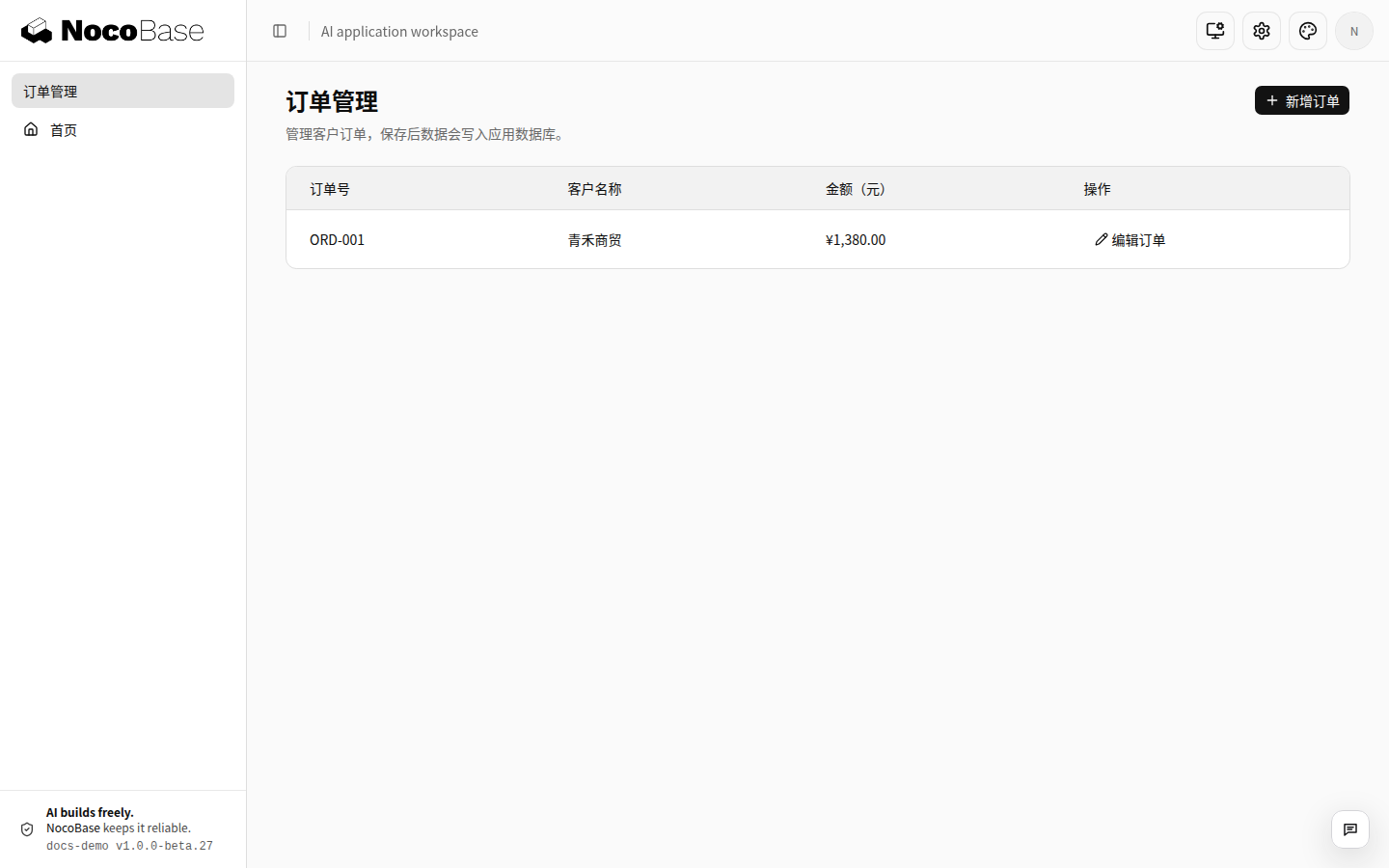
Also try creating another ORD-001 and entering a negative amount. Both must be rejected. Server validation must enforce the rules as well as the form.
Keep working when a check fails
Tell the AI Agent what you did, what you expected, and what actually happened, then check again after it fixes the cause. See Return specific feedback for how to describe the problem.
What comes next
This page walked through one complete collaboration cycle: describe a requirement, change code, check the result, and request corrections. Build later features the same way: keep each round bounded and checkable before widening the scope. Pick a page by the problem you run into: